Luciq empowers mobile teams to monitor, prioritize, and debug performance and stability issues throughout the app development lifecycle.
The Luciq integration will forward every single bug or issue reported to you into your Shortcut dashboard. So you can easily receive, track, and assign issues from Shortcut to your team without getting interrupted.
To learn more about Luciq and the Luciq <> Shortcut integration, please visit their website at Luciq Integrations and review the setup details.
Steps to get set up:
- In Shortcut, go to Settings > API Tokens
- Name and generate a new token.
- Copy the token somewhere secure.
- In Luciq, go to the "Extras" menu
- Select "3rd Party Integrations"
- Click on the Shortcut icon
- Enter your Token.
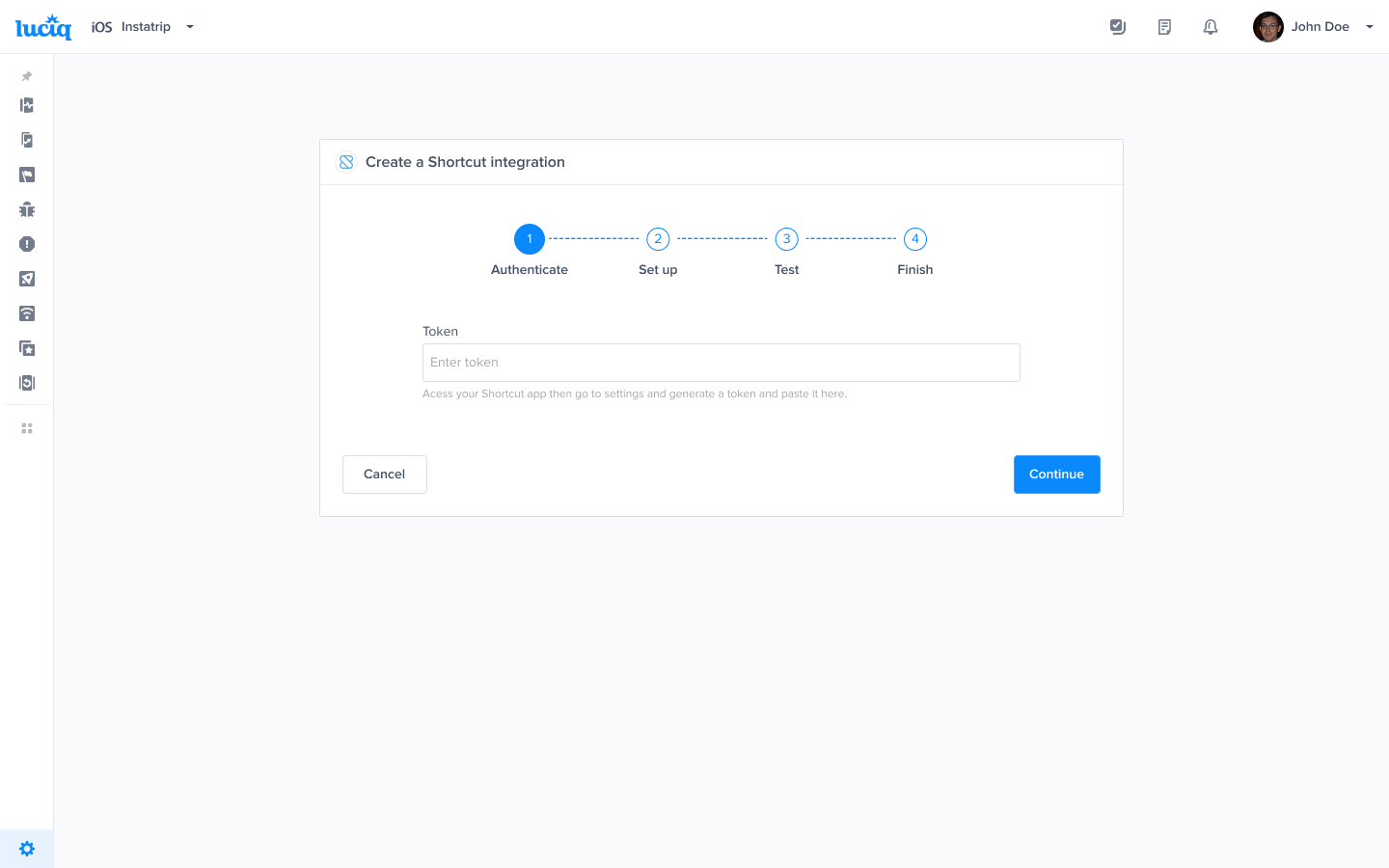
- Choose your Project. You can also choose which details get forwarded as well.
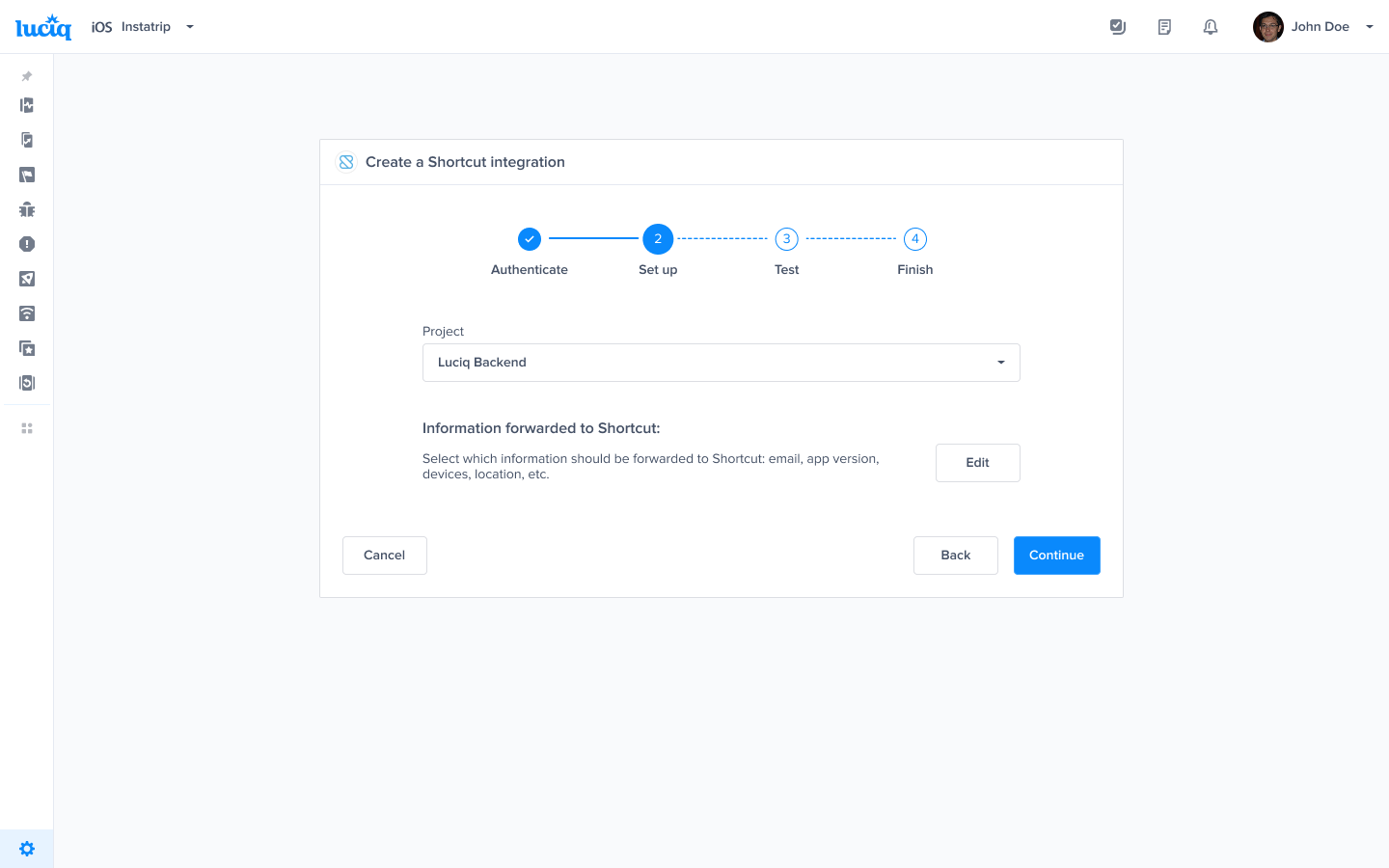
- At this point, we just need to test your integration so that we're sure everything is working smoothly.
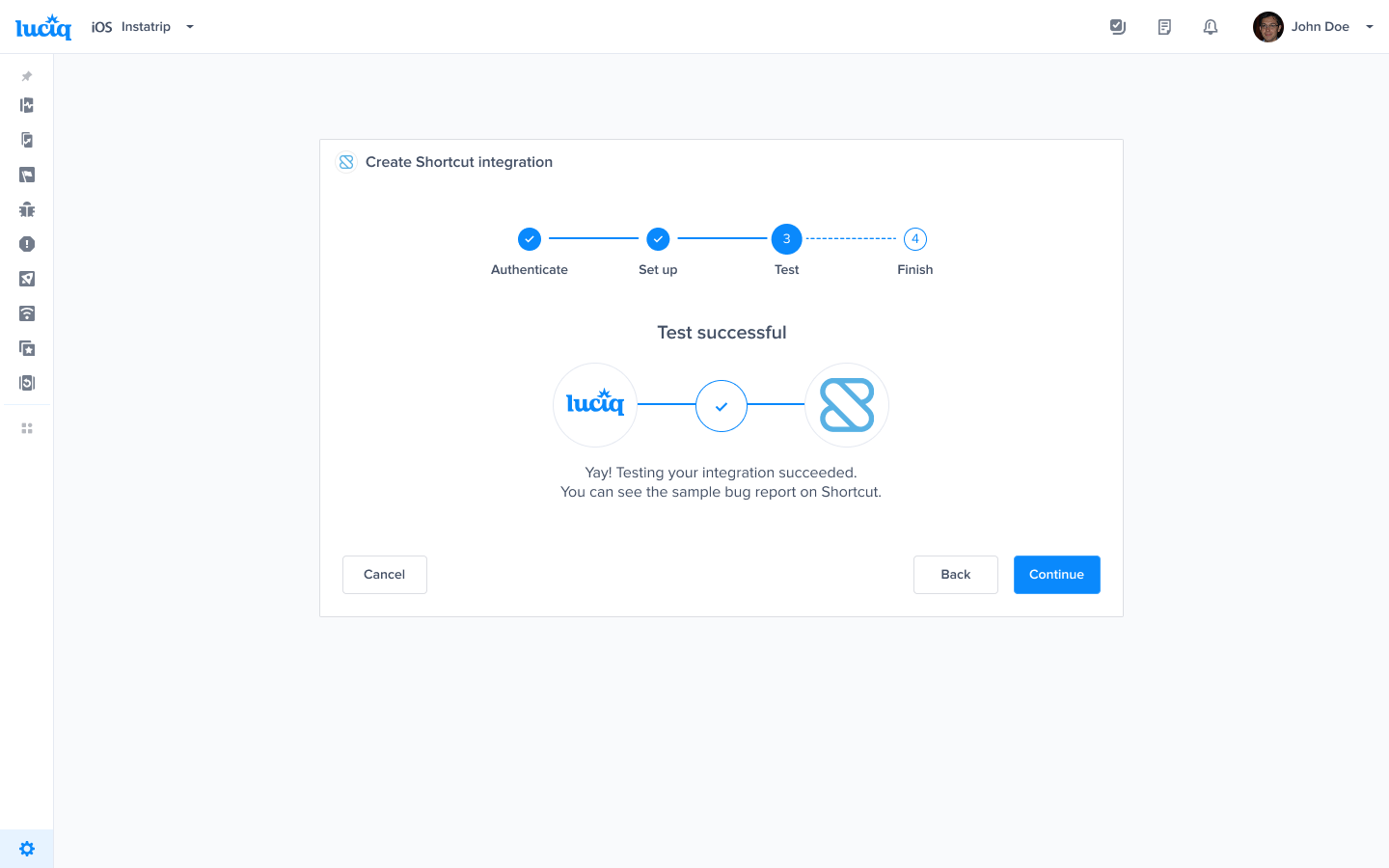
- All done! Your integration is now set up and ready to go. From this final page, you can allow automatic forwarding (don't worry though, this can be reconfigured at any time!)
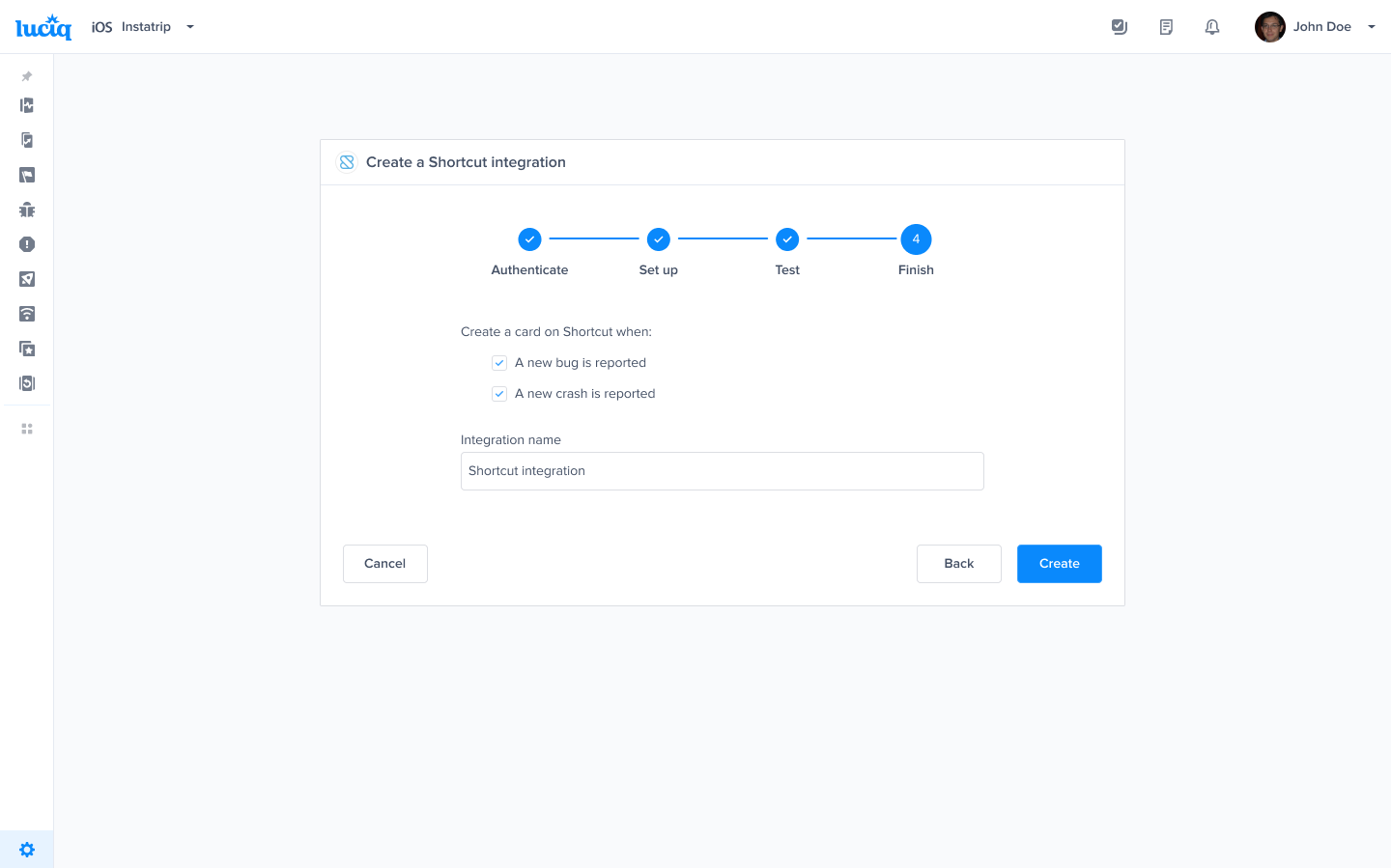
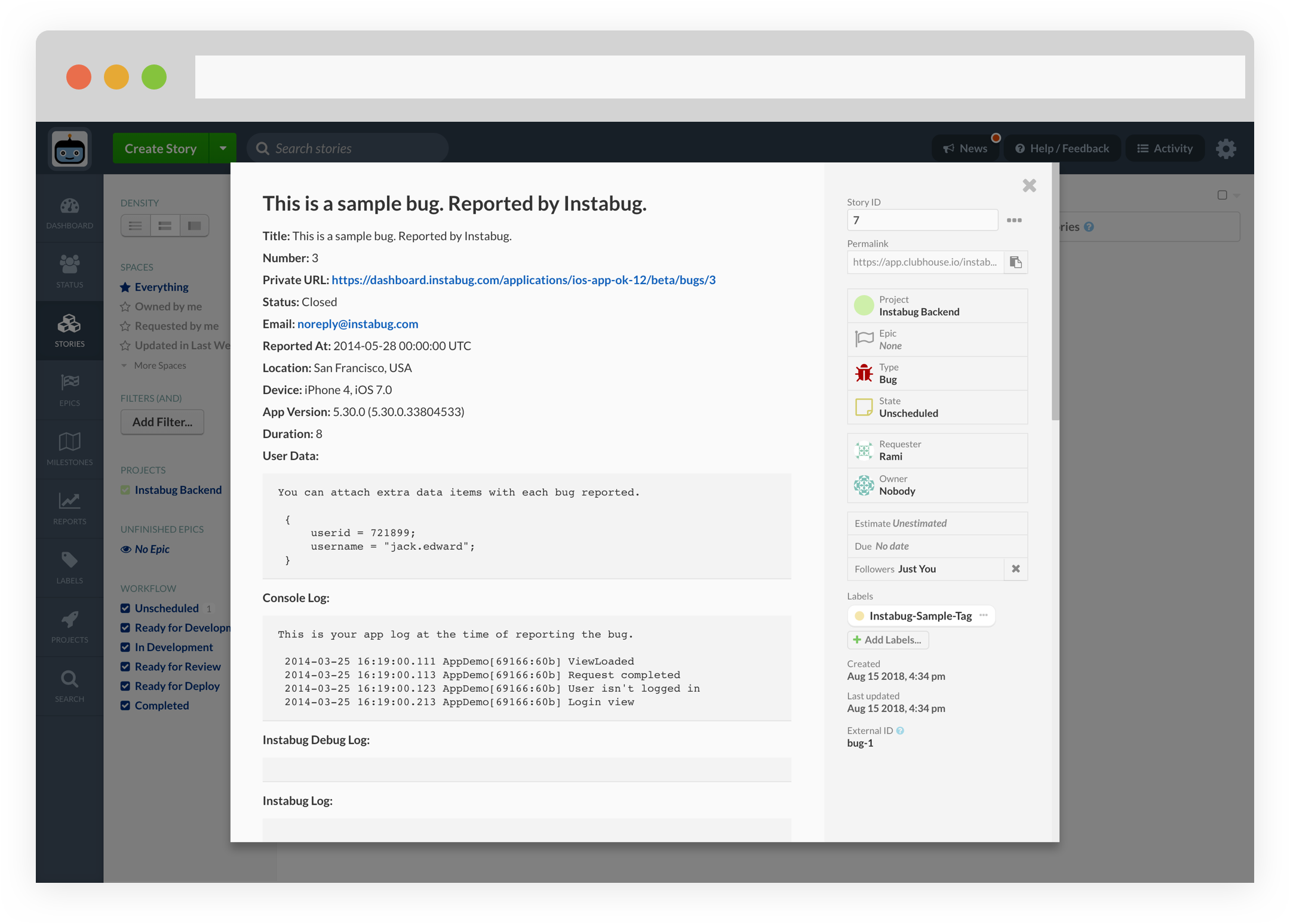
- Issues forwarded to Shortcut should look something like this.
Note: The Luciq Shortcut integration is maintained by Luciq, while we are here to assist with any questions you might have, we suggest visiting the Luciq Help Center and reaching out to their Support team directly if experiencing challenges with the integration.
Updated